Instructor Guide
Grading Overview
The Grading module lets you review student submissions, grade subjective questions, and provide feedback.
Who can access this? Organization Admin, Branch Admin, Instructor
How Grading Works
When students submit an exam:
- Objective questions (MCQ, True/False, Fill-in-Blanks, Matching) are auto-graded instantly
- Subjective questions (Essay) require manual grading by an instructor
- Once all questions are graded, the total score is calculated and results become available
Grading Home
Go to Grading from the sidebar to see the grading home page.
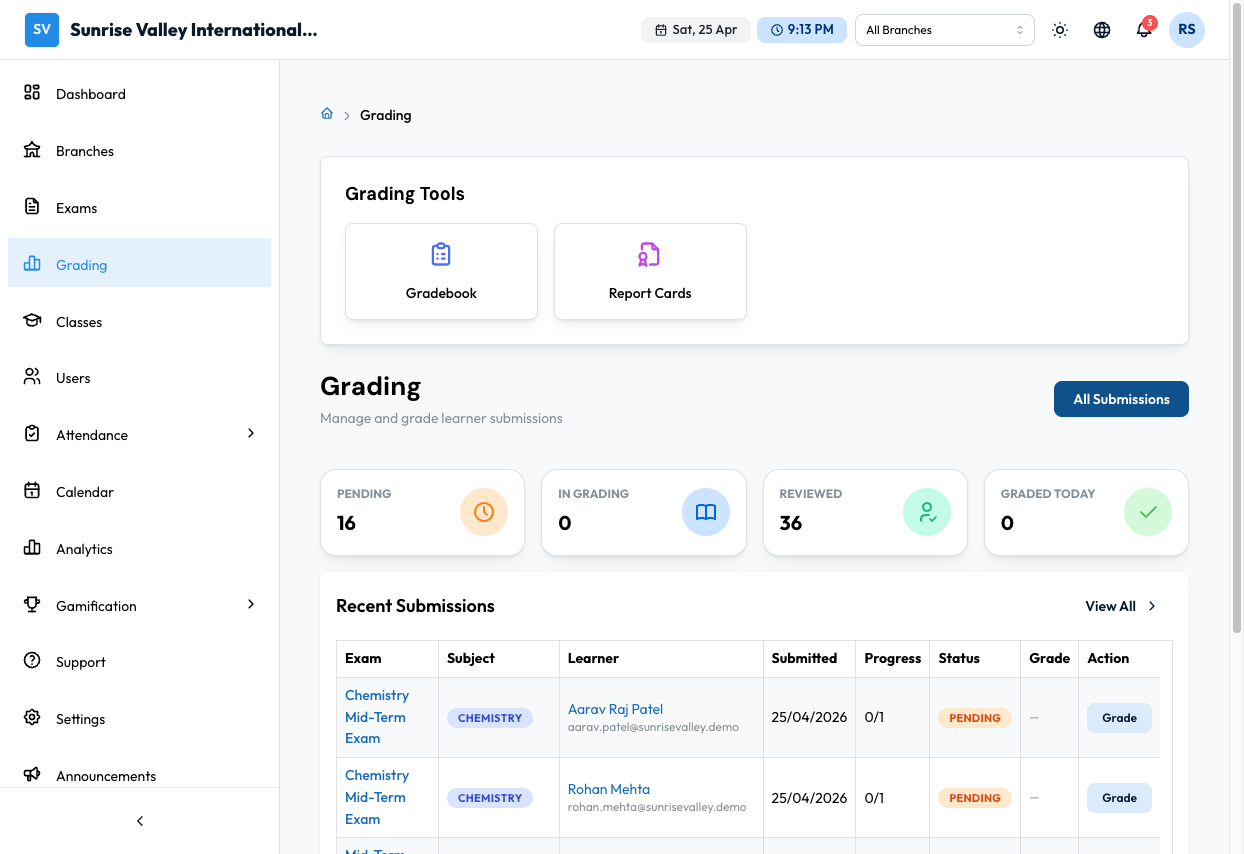
Grading Tools
Two quick-access tools at the top:
- Gradebook — Class-wise gradebook view
- Report Cards — Generate and view report cards
Stats Cards
| Stat | Description |
|---|---|
| Pending | Submissions waiting for grading |
| In Grading | Submissions currently being graded |
| Reviewed | Submissions that have been fully graded |
| Graded Today | Submissions graded today |
Recent Submissions
A table of recent submissions with columns:
| Column | Description |
|---|---|
| Exam | Exam title (clickable link to exam details) |
| Subject | Subject name |
| Learner | Student name and email |
| Submitted | Submission date |
| Progress | Questions graded out of total (e.g., "0/10") |
| Status | PENDING, IN_GRADING, or REVIEWED |
| Grade | Score or "—" if not yet graded |
| Action | Grade button |
Click Grade on a pending submission to open the grading interface.
Grading a Submission
The submission detail page shows:
For Auto-Graded Questions
- Question text and student's answer
- Correct answer highlighted
- Marks automatically assigned
- Green badge showing marks obtained
For Essay/Subjective Questions
- Question text with marks available
- Rubric panel (blue background) — The grading criteria set by the question creator
- Student's answer — Full response text
- Sample answer panel (gray background) — Reference answer for comparison
- Grading form:
- Marks — Enter marks (0 to max marks for this question)
- Feedback — Written feedback for the student
Completing Grading
- Grade each pending question by entering marks and feedback
- The progress bar at the top shows how many questions are graded
- Click Submit Grades when all questions are graded
- The student's total score is calculated and results become visible
Auto-Grading Rules
| Question Type | How It's Graded |
|---|---|
| MCQ | Correct option selected = full marks. Wrong = 0 (or negative marks if configured) |
| True/False | Correct = full marks. Wrong = 0 |
| Fill-in-Blanks | Compared against accepted answers list. Case sensitivity depends on configuration. |
| Matching | Each correct pair = proportional marks |
| Matrix | Each correct cell = proportional marks |
| Hotspot | Click within correct region = full marks |
| Essay | Not auto-graded — requires manual grading |
Gradebook
The Gradebook provides a class-wise view of all student scores across exams. Click Gradebook from the grading tools to access it.
Report Cards
The Report Cards tool lets you generate and view student report cards. Click Report Cards from the grading tools to access it.
Tips
- Use the rubric as your grading guide for consistency across students
- Provide constructive feedback — students can see your comments in their results
- Batch grading lets you grade the same question across all submissions quickly
- Check the Sample Answer to calibrate your grading standards
- Auto-graded questions can be overridden if needed (e.g., accepting an alternative answer)