Admin Guide - Branches
Managing Branches
Branches represent the physical campuses or locations within your organization. Single-campus institutions have one branch; multi-campus institutions can manage multiple branches from the same dashboard.
Who can access this? Organization Admin
Viewing Branches
Go to Branches from the sidebar to see all your branches.
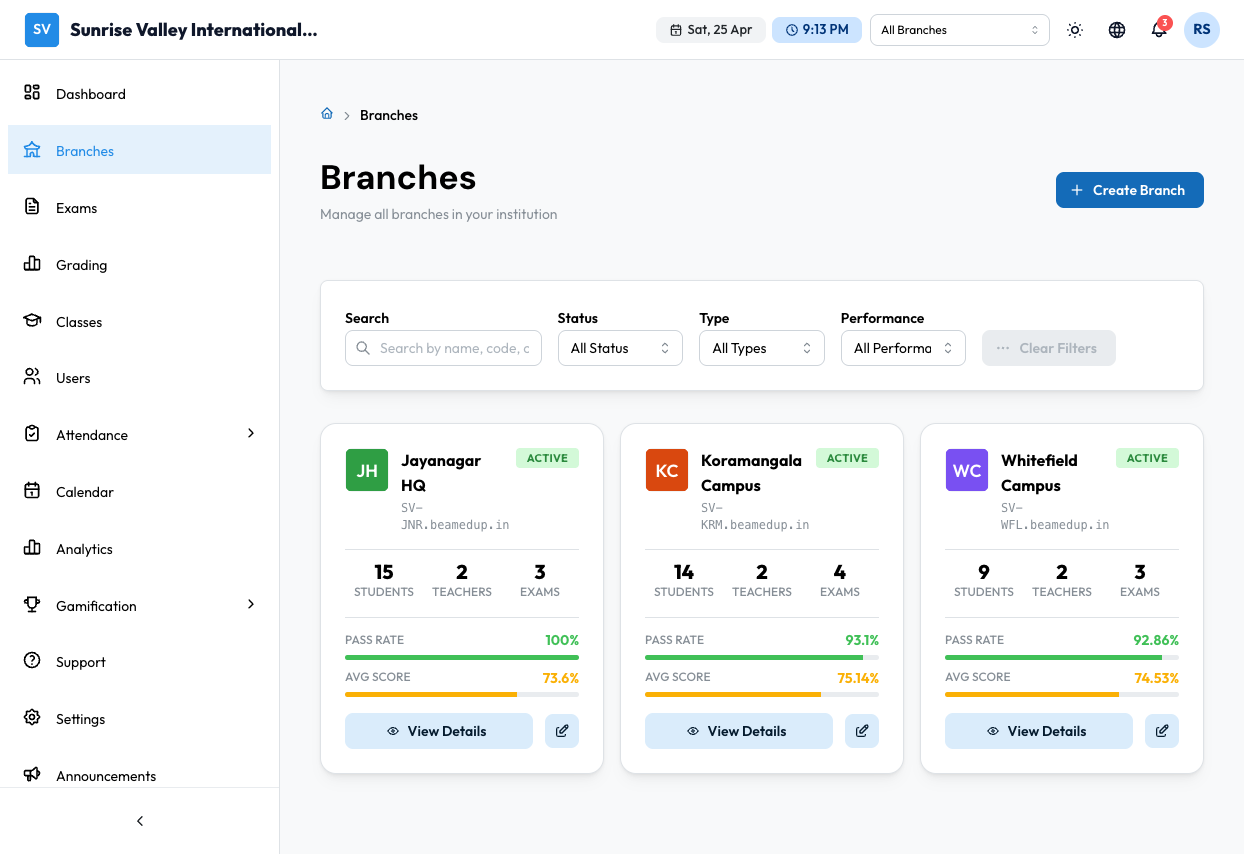
The branches page shows:
- Branch cards with avatar initials, name, subdomain, and status badge
- Stats — Students, Teachers, Exams count
- Performance — Pass Rate and Avg Score with progress bars
- Actions — View Details, more options menu
- Search — Search by name, code, or location
- Filters — Status, Type, Performance
- Create Branch button
Creating a Branch
Click Create Branch to open the branch creation wizard.
Branch Details
| Field | Required | Description |
|---|---|---|
| Branch Name | Yes | Full name of the campus (e.g., "Sunrise Valley - Koramangala Campus") |
| Display Name | Yes | Short name for badges and lists |
| Branch Code | Yes | Unique code (e.g., SV-KRM). Used in URLs and student IDs |
| Branch Type | Yes | Select from: School, College, University, Coaching Center, Training Institute, etc. |
| City | Yes | City where this branch is located |
| State | Yes | State/province |
| Country | Yes | Country |
| Address | No | Full street address |
| Phone | Yes | Branch contact phone number |
| No | Branch contact email | |
| Website | No | Branch-specific website |
| Description | No | Brief description |
Branch Configuration
Additional settings available during or after creation:
- Academic Year — Set the current academic year for this branch
- Grade Format — Choose how grades are displayed
- Timezone — Set the branch timezone
- Branding — Customize colors and logo for this branch
- Terminology — Customize labels (e.g., "Student" vs "Learner", "Teacher" vs "Instructor")
Branch Details Page
Click View Details on a branch card to see its full details with tabbed navigation:
| Tab | What It Shows |
|---|---|
| Overview | Contact info, academic settings, branding, terminology |
| Users | All users assigned to this branch |
| Classes | Classes within this branch |
| Exams | Exams created for this branch |
| Settings | Branch-specific configuration |
| Analytics | Performance metrics for this branch |
Editing a Branch
Click the Edit icon on a branch card or the Edit button on the details page. The edit form has tabs:
- Basic Details — Name, display name, code, type
- Configuration — Academic year, branding, terminology
- Contact & Address — Phone, email, address
- Danger Zone — Deactivate or delete the branch
Tips
- Use meaningful branch codes that are easy to remember (e.g.,
SV-JNRfor "Sunrise Valley - Jayanagar") - The branch subdomain is auto-generated from the code and appears as
SV-JNR.beamedup.in - Users, classes, and exams are scoped to branches — content in one branch is not automatically visible in another
- The Question Bank is shared across all branches within an organization