Question Bank
The Question Bank is a shared library of questions that can be reused across multiple exams. Questions are organized by subject, topic, difficulty, and type.
Who can access this? Organization Admin, Branch Admin, Instructor
Question Bank Overview
Go to Questions from the sidebar to see all questions.
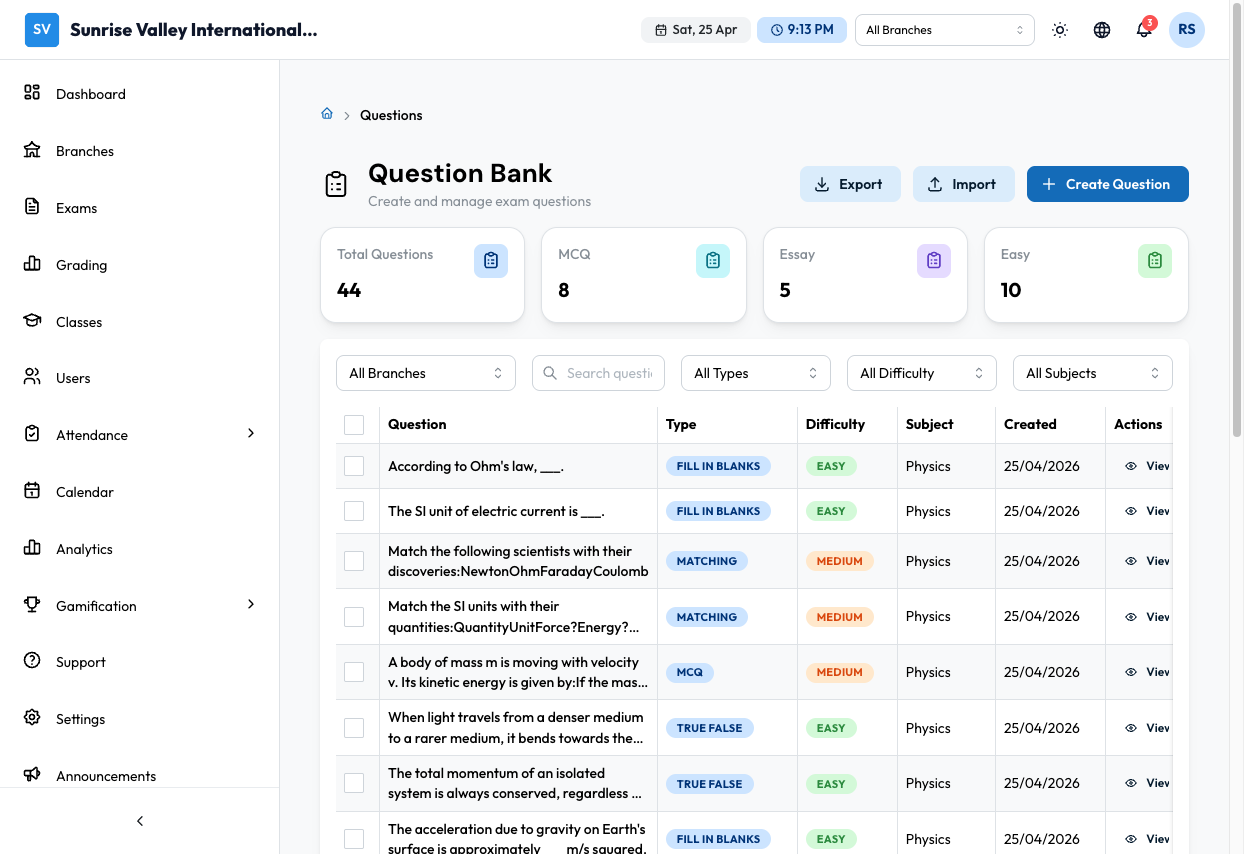
The page shows:
- Stats cards — Total questions, MCQ count, Essay count, Easy difficulty count
- Filters — Branch, search (by question text), Type (All Types), Difficulty (All Difficulty), Subject (All Subjects)
- Bulk actions — Select multiple questions using checkboxes for bulk operations
- Action buttons — Export, Import, Create Question
Question Table
| Column | Description |
|---|---|
| Select | Checkbox for bulk selection |
| Question | Question text (clickable to view) |
| Type | MCQ, TRUE FALSE, FILL IN BLANKS, MATCHING, ESSAY, MATRIX, HOTSPOT |
| Difficulty | Easy, Medium, Hard |
| Subject | Subject name |
| Created | Creation date |
| Actions | View, Edit |
Pagination controls at the bottom for navigating large question sets.
Creating a Question
Click Create Question to open the question creation form.
Metadata
| Field | Required | Description |
|---|---|---|
| Subject | Yes | The subject this question belongs to |
| Topic | No | Specific topic within the subject |
| Difficulty | Yes | Easy, Medium, or Hard |
| Tags | No | Custom tags for search and filtering |
Question Data
Choose a Question Type and enter the question content:
| Type | Description | Auto-Graded? |
|---|---|---|
| MCQ | Multiple choice with 2-6 options, one correct answer | Yes |
| True/False | Two options — true or false | Yes |
| Fill in the Blanks | Text with blank markers, accepted answer list | Yes |
| Essay | Long-form text response with optional word limits | No |
| Matching | Match items from left column to right column | Yes |
| Matrix | Grid-based question with row and column options | Yes |
| Hotspot | Click on correct area of an image | Yes |
For each question type, you will fill in type-specific fields like options, correct answers, rubrics, or matching pairs.
Preview & Submit
Preview how the question will appear to students, then save to add it to the bank.
Question Types in Detail
MCQ (Multiple Choice)
- Enter the question text
- Add 2-6 answer options
- Mark the correct answer
- Optionally add feedback for each option (shown after grading)
- Toggle shuffle options to randomize order during exams
True/False
- Enter the question text
- Select the correct value (True or False)
- Optionally customize labels (e.g., "Correct/Incorrect")
Essay
- Enter the question text and instructions
- Set minimum/maximum word count (optional)
- Add a rubric describing grading criteria
- Add a sample answer for graders to reference
Fill in the Blanks
- Enter text with blank markers (e.g., "The capital of India is ____")
- List accepted answers (can include multiple valid answers)
Matching
- Create left column items (premises)
- Create right column items (responses)
- Define correct pairings
- Optionally add distractors (extra items with no match)
Matrix
- Define rows and columns
- Set up the correct selections in the grid
Hotspot
- Upload an image
- Define clickable regions as the correct answer areas
Bulk Import Questions
Click Import to upload questions from a CSV file:
- Download the CSV template
- Fill in questions following the column format
- Upload the CSV
- Configure import settings (subject, branch)
- Review and confirm
See CSV Import Formats for template details.
Exporting Questions
Click Export to download questions as a CSV file. Use filters to export a specific subset.
Tips
- Organize questions by subject and topic for easy retrieval when building exams
- Use tags for cross-cutting categories (e.g., "midterm", "chapter-5", "board-prep")
- MCQ, True/False, and Fill-in-Blank questions are auto-graded — use these for faster results
- Essay questions require manual grading — add rubrics and sample answers to help graders
- Questions are shared across all branches within an organization