Managing Exams
Exams are assessments you create, configure, and assign to classes. Students access assigned exams from their dashboard and complete them within the configured time limits.
Who can access this? Organization Admin, Branch Admin, Instructor
Exam List
Go to Exams from the sidebar to see all exams.
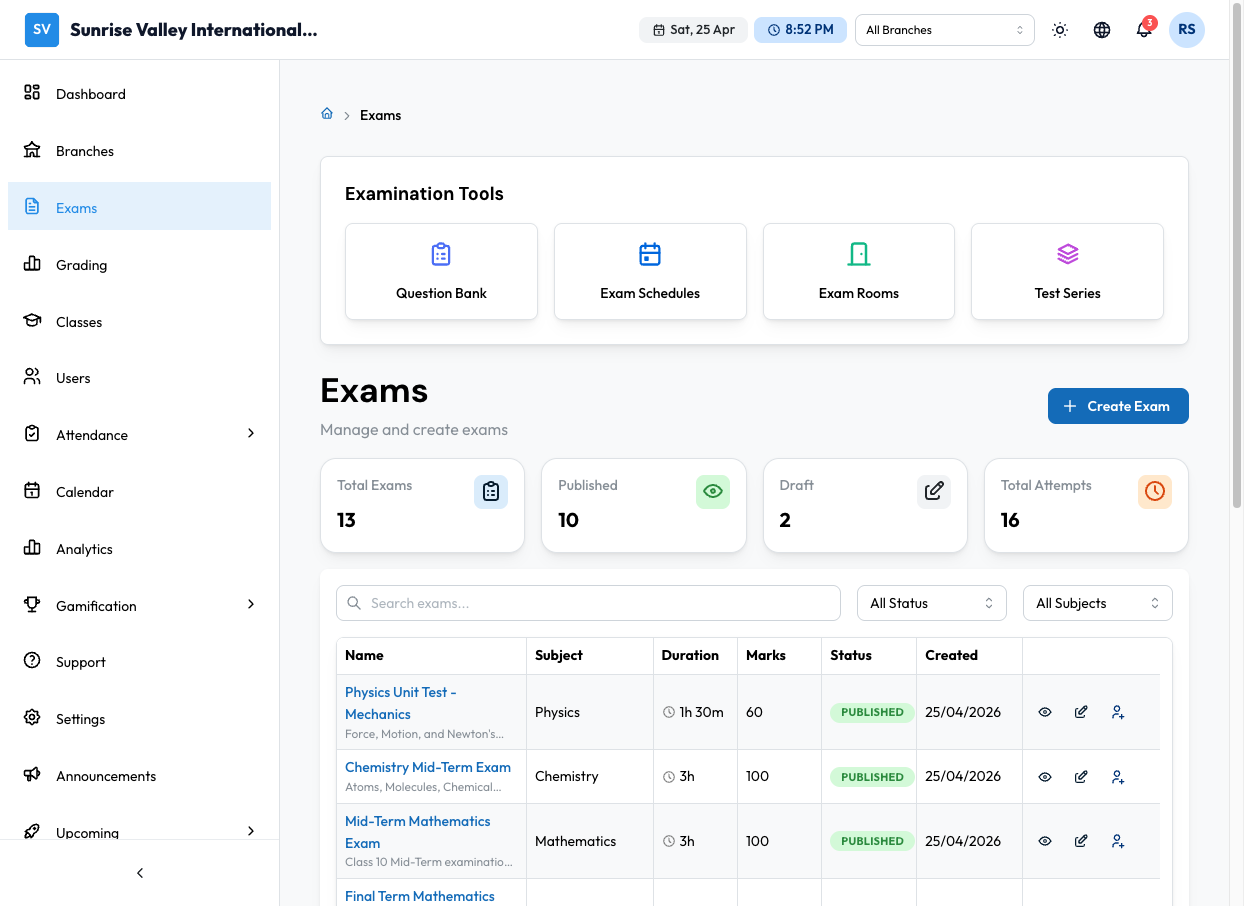
The page shows:
- Stats cards - Total exams, published count, draft count, total attempts
- Search - Search by exam name
- Filters - Status (All/Draft/Published/Archived), Subject
- Exam table - Name with description, subject, duration, marks, status, created date, actions
Creating an Exam
Click Create Exam to open the 3-step exam wizard.
Step 1: Basics
Core Details:
| Field | Required | Description |
|---|---|---|
| Exam Title | Yes | Name of the exam (e.g., "Physics Unit Test - Mechanics") |
| Description | No | Brief description shown to students |
| Exam Type | Yes | Quiz, Test, Mid-Term, Final, Assignment, Practice, or Board Exam |
| Subject | Yes | Subject this exam covers |
Difficulty & Tags:
| Field | Required | Description |
|---|---|---|
| Difficulty | Yes | Easy, Medium, or Hard |
| Tags | No | Custom tags for organization |
Education Details:
| Field | Required | Description |
|---|---|---|
| Education Board | No | CBSE, ICSE, State Board, etc. |
| Class / Grade | No | Target grade level |
Step 2: Questions
Add questions to the exam:
- Add from Question Bank - Opens a modal to search and select existing questions by subject, type, difficulty
- Create New - Create a question inline without leaving the wizard
- Reorder - Drag questions to change their sequence
- Questions show their type badge, difficulty, and marks
Step 3: Settings
Configure exam behavior:
| Setting | Description |
|---|---|
| Duration | Time limit in minutes (e.g., 60 minutes) |
| Total Marks | Maximum marks for the exam |
| Passing Marks | Minimum marks required to pass |
| Maximum Attempts | How many times a student can take the exam (default: 1) |
| Shuffle Questions | Randomize question order for each student |
| Shuffle Options | Randomize MCQ option order |
| Negative Marking | Deduct marks for wrong answers (configurable per question) |
| Result Visibility | When students can see results (immediately, after grading, after date) |
Click Save as Draft or Save and Publish.
Exam Lifecycle
Draft → Published → (Students take exam) → Grading → Results Available
- Draft - Exam is being prepared. Not visible to students. Can be edited freely.
- Published - Exam is live. Assigned students can take it. Limited editing.
- Archived - Exam is closed. Results are preserved for reference.
Assigning Exams
From the exam details page, click the Assign icon to assign to classes:
- Select one or more classes
- Set the scheduled date range (start and end dates)
- Optionally configure notification to alert students
- Click Assign
For multiple exams, use Bulk Assign from the exams list page.
Previewing Exams
Click the Preview icon to see the exam as students will see it. The preview shows:
- Exam title and instructions
- All questions with their options
- Duration and marks information
- Submit button (disabled in preview mode)
Exam Insights
After students take the exam, view insights from the exam details page:
- Attempt count and completion rate
- Average score and score distribution
- Pass rate
- Question-level performance - which questions students struggled with
Cloning an Exam
To create a copy of an existing exam, click Clone from the exam actions. This duplicates all settings and questions into a new draft exam.
Tips
- Always Preview your exam before publishing to verify question layout
- Use Draft status while building - only publish when ready for students
- Set Passing Marks to define the minimum score for a pass
- Shuffle Questions prevents students from sharing answers by order
- Auto-graded questions (MCQ, True/False, Fill-blank) give instant results
- Essay and subjective questions need manual grading