Guardian Guide
Guardian Dashboard
The guardian (parent) dashboard lets you monitor your children's academic progress, exam results, and school activities.
Who can access this? Guardian
Dashboard Overview
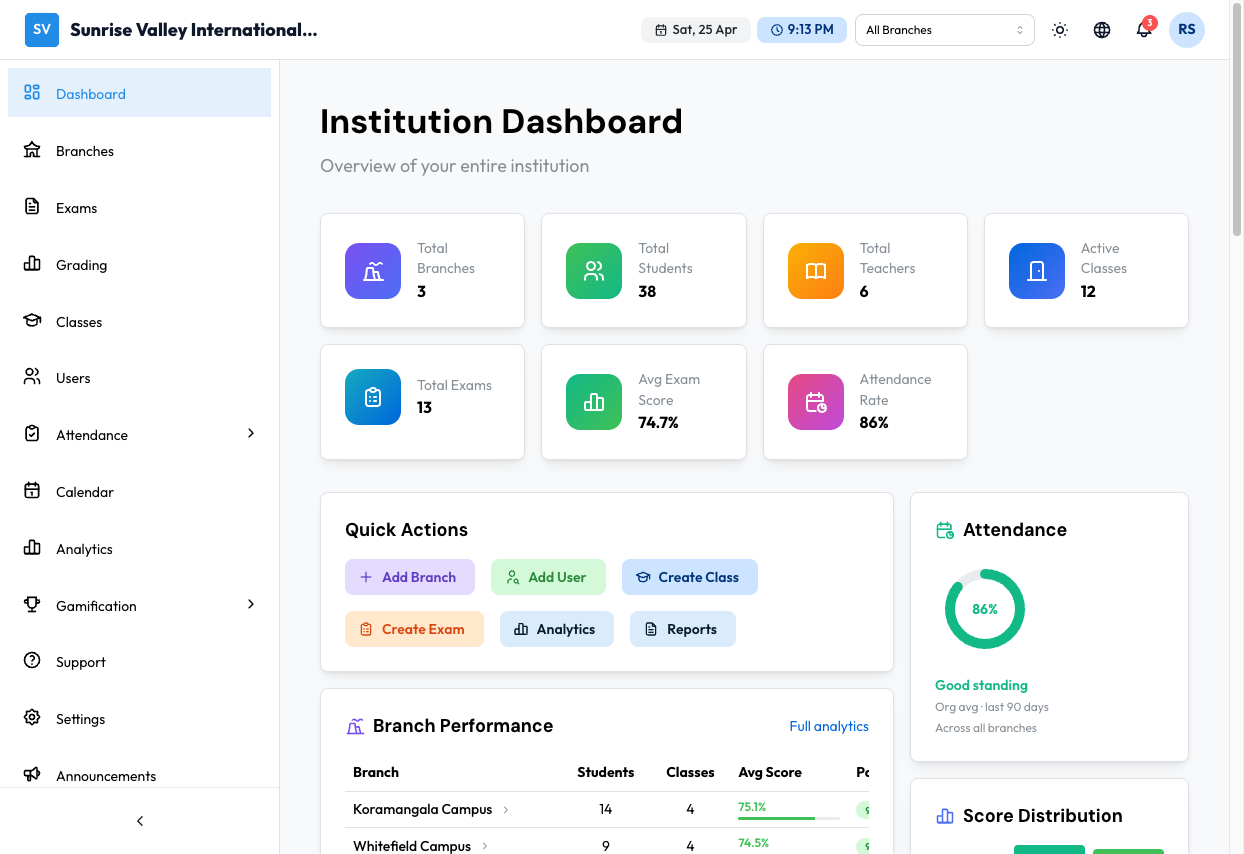
Children Overview
If you have multiple children enrolled in the organization, the dashboard shows cards for each child with key metrics. Click a card to view that child's full details.
Stats Cards
For the selected child:
- Total Exams — Number of exams completed
- Average Score — Across completed exams
- Highest Score — Best performance
- Class Rank — Standing among classmates
Performance Trend
A chart showing exam scores over time, helping you spot trends in your child's performance.
Upcoming Exams
A list of exams your child has not yet taken, with scheduled dates.
Navigation
From the sidebar, guardians can access:
- Dashboard — Home overview
- Exams — View your child's exam history and upcoming exams
- Attendance — View attendance records
- Report Cards — View report cards
- Notifications — Receive alerts about exams, results, and announcements
- Calendar — View academic calendar, exam dates, and events
- Analytics — View performance analytics
- Settings — Manage profile and preferences
- Gamification — View achievements and progress
Viewing Child's Exams
Go to Exams from the sidebar to see your child's exam history.
The page shows your child's info banner (name, class, section) and two tabs:
Upcoming Tab
- Exam cards with urgency badges:
- Red — Today or overdue
- Orange — Tomorrow or within 3 days
- Blue — More than 3 days away
- Gray — Date not yet set
- Subject, chapters covered, scheduled date, duration
Completed Tab
- Exam result cards showing:
- Pass/Fail badge
- Score (marks obtained / total marks) with percentage
- Class rank (if available)
- Time spent on the exam
- Click View Details for full breakdown
Performance Analytics
Go to Analytics from the sidebar for detailed analytics:
- Subject-wise performance breakdown
- Score trends over time
- Comparison with class average
- Growth metrics
Tips
- Check the Performance Trend chart regularly to spot patterns early
- Use the Upcoming Exams section to help your child prepare
- The Class Rank metric shows how your child compares to their peers
- Contact the school via Support if you notice any data discrepancies